
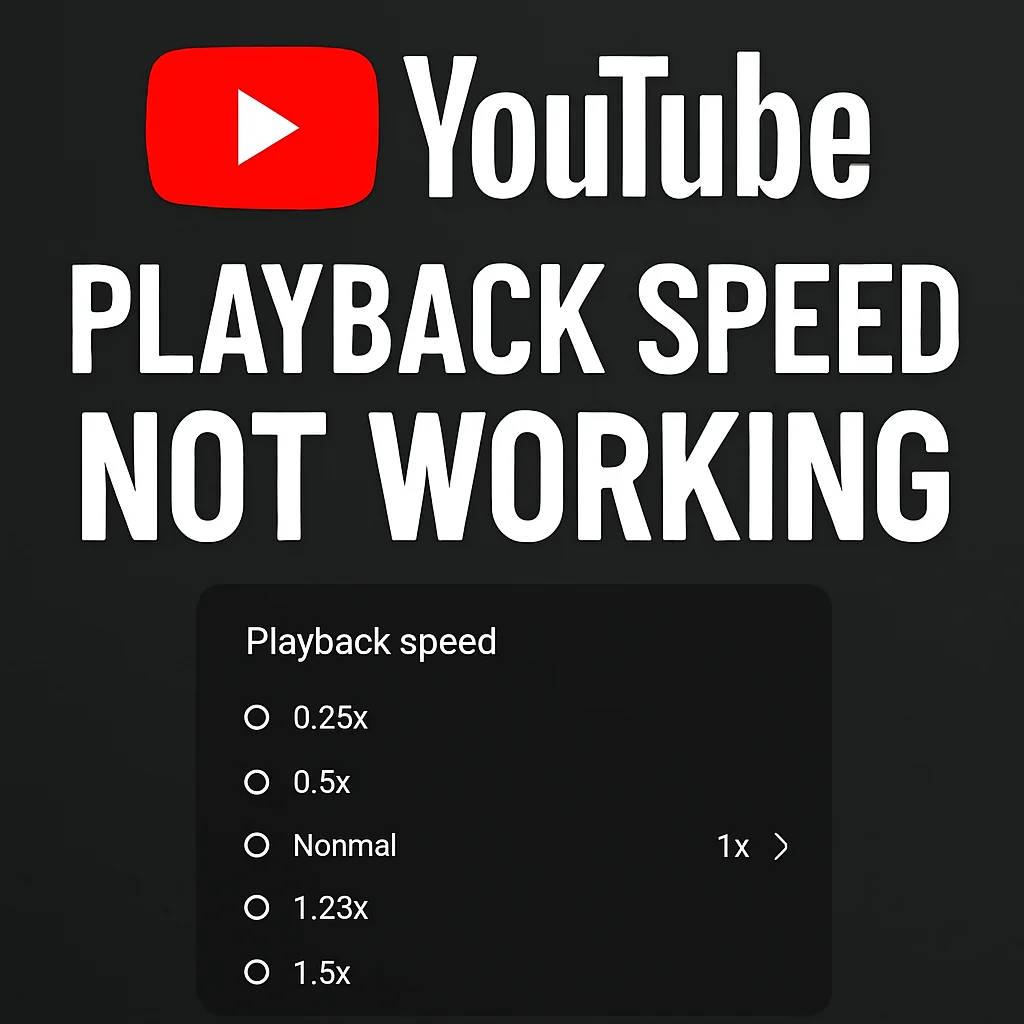
If you’ve noticed that the YouTube playback speed option is not working today, you’re not alone. As of August 2025, thousands of users worldwide are reporting issues with playback speed being stuck at 1x, especially on Android devices. Even Chrome users have complained about the speed control disappearing or not functioning properly.
So, what’s going on? Has YouTube removed the playback speed feature? Or is it a temporary bug? Let’s explore the reasons, the latest updates from YouTube, and how you can fix this problem right now.
Why Is YouTube Playback Speed Not Working in August 2025?
According to reports from 9to5Google, Reddit, and Google Help forums, the issue started on August 5, 2025. Users are saying:
- The Playback Speed menu appears, but tapping other speeds (like 1.25x or 2x) does nothing.
- Some users only see 1x speed and no other options.
- The problem is mostly affecting Android app users, but some desktop users on Chrome are also impacted.
Is this permanent?
No. This seems to be a temporary bug introduced in the latest YouTube app update or a server-side issue. YouTube has not officially announced a fix yet, but engineers are likely working on it.
What People Are Saying
- Reddit User: “I can’t change the speed on my Android YouTube app since this morning. It’s stuck on normal speed. Anyone else?”
- Google Help Forum: “Playback speed changes no longer working! Anybody else having this problem?”
Has YouTube Removed Playback Speed?
No, YouTube has not removed playback speed. It’s still an official feature, and this is just a bug. So, don’t panic—it will likely be fixed soon.
Quick Fixes: How to Restore YouTube Playback Speed
While YouTube works on an official fix, here are 10 proven solutions you can try right now:
✅ Fixes for Mobile Users (Android & iPhone)
- Update the YouTube App
- Go to Google Play Store or App Store and install the latest version.
- Clear App Cache (Android)
- Settings → Apps → YouTube → Storage → Clear Cache.
- Reinstall YouTube
- Uninstall the app and reinstall it from the official store.
- Use Desktop Mode in Browser
- Open Chrome → Tap three dots → Desktop Site → Open YouTube and adjust speed.
- Try YouTube Vanced or Alternative Players
- Third-party apps or browser extensions (use at your own risk) allow speed control.
✅ Fixes for Desktop Users
- Refresh or Restart Browser
- Sometimes, a simple refresh works.
- Clear Browser Cache
- Chrome → Settings → Privacy → Clear Browsing Data → Cache & Cookies.
- Disable Extensions
- Ad blockers or video tools can break speed control.
- Update Browser
- Make sure you’re on the latest Chrome, Firefox, or Edge version.
- Try a Different Browser
- If Chrome is buggy, try Firefox or Brave.
Workaround Until Official Fix
- Use keyboard shortcuts:
- Shift + > = Increase speed
- Shift + < = Decrease speed
- Or, install Video Speed Controller extension for Chrome.
Why This Bug Happened
Most likely, it’s:
- A server-side glitch during YouTube’s recent feature rollout.
- A code conflict in the latest Android update.
Good news: Bugs like this are usually fixed within 24–48 hours.
Prevent Future Playback Issues
- Keep your app and browser always updated.
- Clear cache regularly.
- Avoid installing too many third-party extensions.